Appearance
Editing Activities

Finding an activity that has finished
The activity list shows what is currently running. Activities that have already finished are left out, because they are usually not what you are there for.
Tick Ended above the list to bring them back in. What happened last term is a fair question, and this is how you ask it.
Editing an activity
There are two main areas where you can edit an activity. If you want to edit all sessions of the activity go to the school, centre, or teacher, and the activity tab. Then use the edit activity icon. This will open a display similar to the add activity one, and any changes made will effect all sessions of the activity.
You make any edits that are required to the form that appears. Once you are satisfied with any changes you have made, use the Commit Activity record icon to save changes. Again, make sure to save the School, Centre or Teacher record as well.
If you make no changes whilst in edit mode, you can use the View Activity Record icon. This will take you back to view mode without any changes being made.
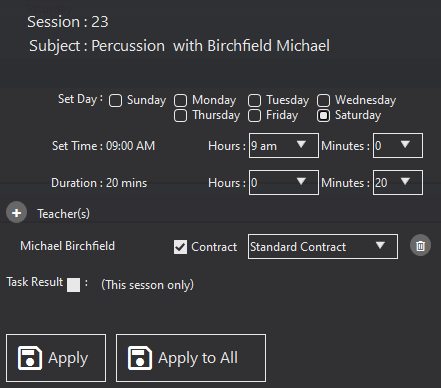
You can also make certain changes to an activity in Diary View. To do this, go to the Diary tab under the School, Centre, or Teacher tab and double click on the activity that you wish to edit. Here, you can alter the time and duration as well as the teacher. You can remove a teacher or add a new one. You can choose to have more than one teacher. You can also add a task result to the session.
Where a session is a Make Up for one that was not delivered, tick it and set the MakeUp Date - the date the replacement session is actually being held. Apply changes will make the change to only the selected activity session. If you want to apply the change to all future sessions of the chosen activity, click apply changes to all.