
Appearance
Inviting Pupils from Tuition Waiting List
To invite a pupil from a Waiting List you will need to access a display of all the pupils on the Waiting List. First, open the tuition Waiting List you will be inviting the pupil from e.g. A Tuition Waiting List.
Load up the Venue and click on the Activity tab
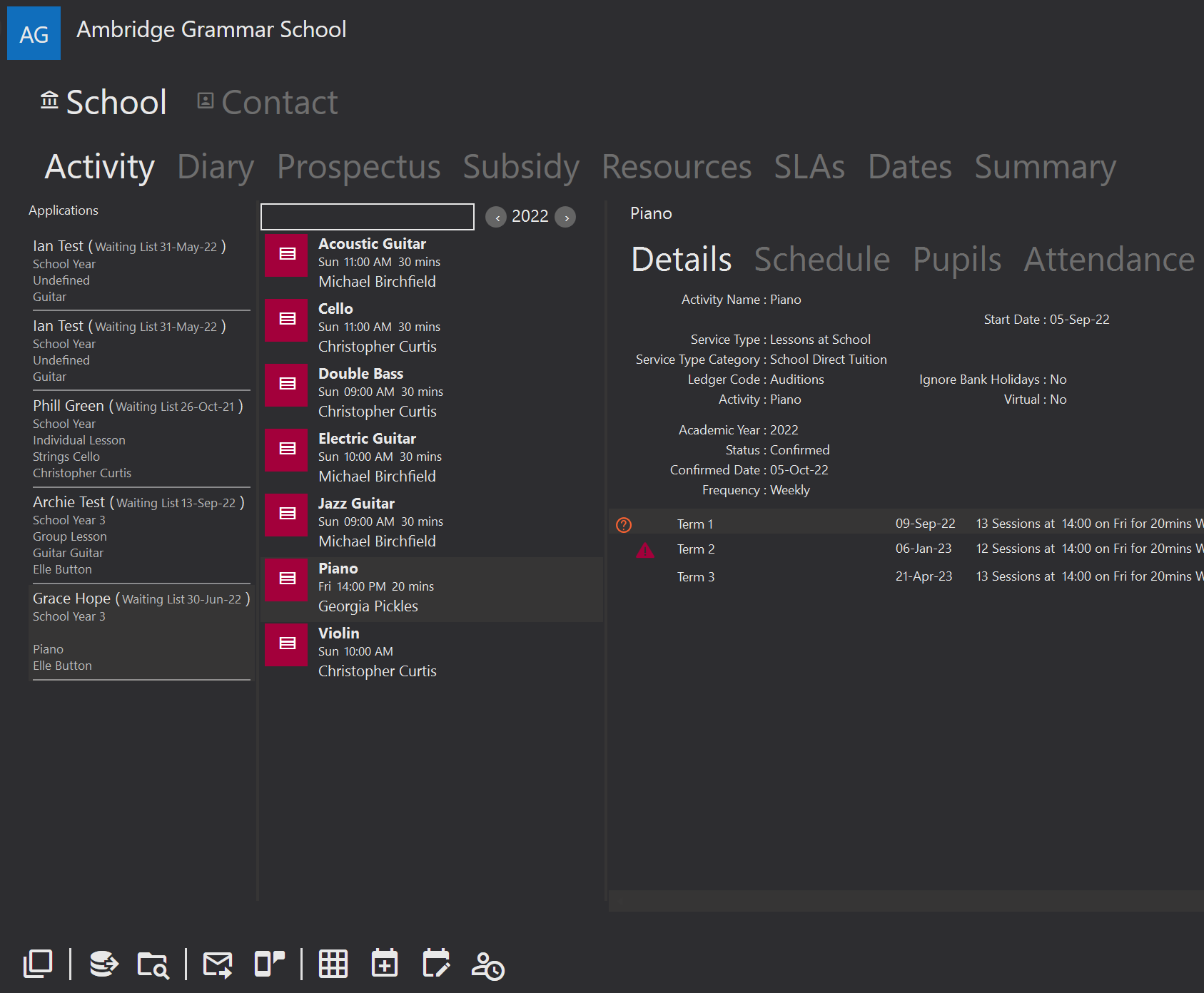
From the bottom click on the View Applications icon. This will display all of the pupils in the waiting list for this venue.
Putting an application back on the list
A teacher working through their own waiting list can accept a pupil, or take one away to think about. Either way the application leaves the list.
Return to the Waiting List undoes that. Select the application and use the toolbar button, and it goes back on the list it came from.
It is offered only where there is something to undo - on an application the teacher has accepted or is considering. It does not appear on one that has gone further than that.
Click on the pupil and drag them into the activity required
The Assign Pupil screen will appear
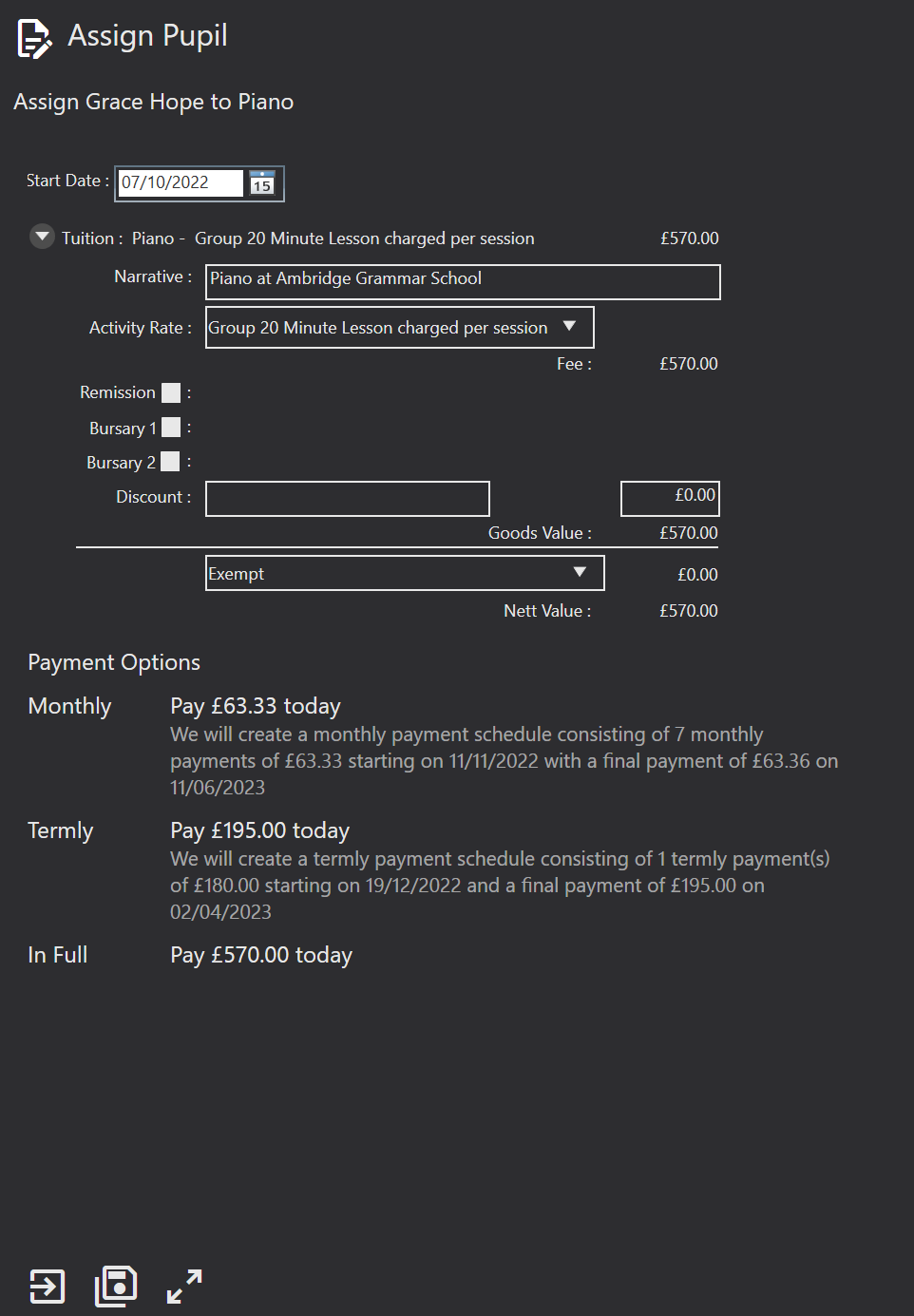
Here, you can select the intended “Start Date” for lessons. You can also choose the “Activity Rate” using a tick box and drop-down list of options.
Please note, that the Activity Rate is used for looking-up the basic cost and can be overwritten as well as undergo further reductions, remissions, bursaries, and discounts.
Finally Save the assignment page and the schedule screen.
If your Service Type is set to use the Offer Process, once you've added a pupil from the Waiting List this will send an invite to the debtor for that pupil, inviting them to confirm and make their first payment.