
Appearance
Diary and messages
Two of the three things on the bottom bar, and the two you open most. Both are there whoever you are — a teacher, a parent, or somebody who is both.
Diary
The diary is your lessons, as a plain list rather than a grid. A phone is too narrow for a week view that anybody can read, so the app gives you the one thing a grid is for — what is next — in the order it happens.
If you teach and have family at the service, a switch at the top chooses between My teaching and Family. If you are only one of the two, there is no switch and you go straight to your own list.
A teacher's diary
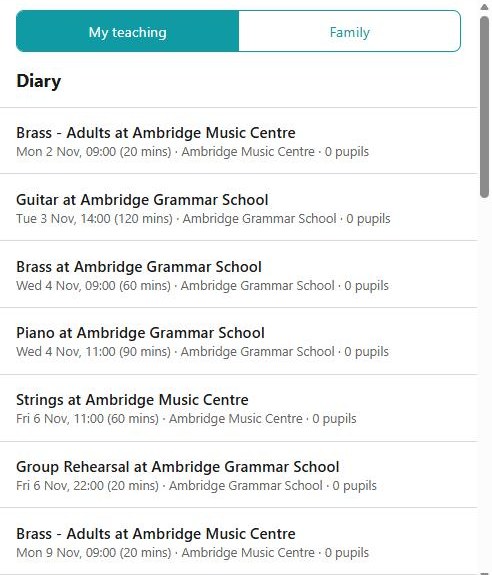
Your own lessons, from two weeks back to three weeks ahead. Each row gives you the subject, the day and time, how long it is, where it is, and how many pupils — and says so plainly where a lesson has no location recorded rather than leaving a gap. Tapping one opens the lesson, which is where the register is: see Teaching on a phone.
Those few weeks either side are deliberate. It is the window the phone keeps for working without a signal, and it is as much as a peripatetic teacher needs to hand.
Sync now
On the app proper there is a Sync now button at the top of the diary. You do not normally need it — the phone sends and refreshes by itself — but it is there for the moment you have just walked back into signal and want to be sure.
A family's diary
Your children's lessons. Opening one shows the attendance so far, and gives you message the teacher and report an absence — which is the one thing worth learning to do from the phone, because it reaches the register before the teacher travels.
When a mark was refused
If you marked a register with no signal and the office had changed that lesson in the meantime, Xperios refuses the mark rather than overwriting their change. The diary then carries a notice at the top saying which lesson and why, and it stays until you tap OK. Nothing is dropped silently — but the lesson is still unmarked, so mark it again. There is more on why in working without a signal.
Messages
The same messages as the Portal — secure messages, and the emails and texts the service sent you — in one mail-style list.
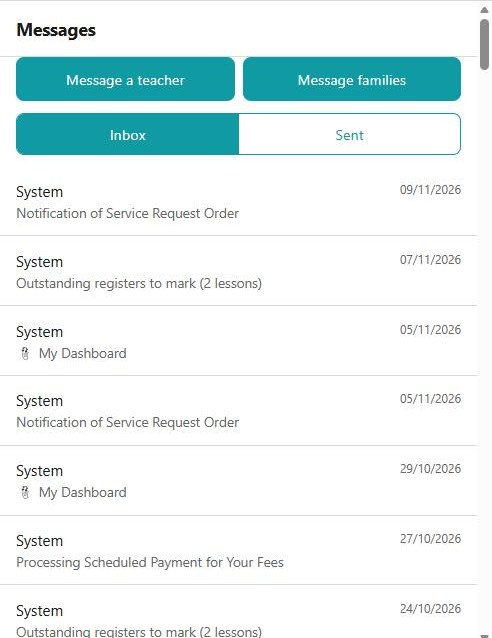
| Inbox | Your own copy of everything sent to you |
| Sent | What you have sent |
A row shows who it is from (or who it went to), the date, the subject, a paper-clip where something is attached, and who it is about where it concerns one of your children. Unread rows are in bold, and the Messages entry on the menu and the bottom bar carries a badge with how many are waiting.
Opening a message shows it with the rest of its conversation, and a reply box.
Starting one
What New message offers depends on who you are:
- Message a teacher — for parents, guardians and adult pupils. You pick the teacher from the ones who teach your family.
- Message families — for teachers, writing to the families you teach.
Somebody who is both a parent and a teacher gets both buttons, side by side above the folders, as in the picture above. Where your service allows neither, there is no button at all — messages still reach you, but you start them from the Portal or by replying to one.
A message is not an absence
Reporting an absence from the family diary reaches the register. A message has to be read by somebody in time to be acted on. Where a child will miss a lesson, report the absence — and add a message only if there is something the teacher needs to know beyond the fact of it.
See also
- Today — what is waiting, gathered in one place
- Teaching on a phone — the lesson page and the register
- Working without a signal