
Appearance
Signing in and your account
The first screen
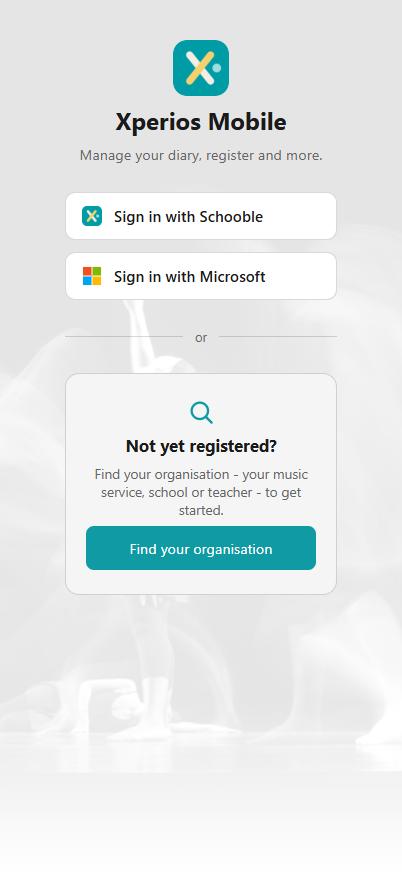
Opening the app for the first time gives you three ways in.
| Sign in with Schooble | An email and password account |
| Sign in with Microsoft | Your school or service Microsoft account |
| Find your organisation | For somebody not yet registered |
The first two are the same account as the Portal — the same sign-in, the same password. There is nothing separate to set up for the app.
Find your organisation is for the person who has the app but no account yet.
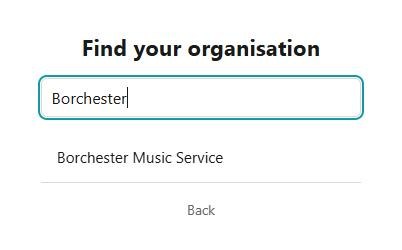
Type two letters or more of your music service, school or teacher and the list narrows as you type. If a name cannot be found, the app says so and tells you to check it with the service — it never leaves you looking at an empty list and wondering whether it is still searching.
Picking one opens that service's own page: what it offers, and how to get started with it.
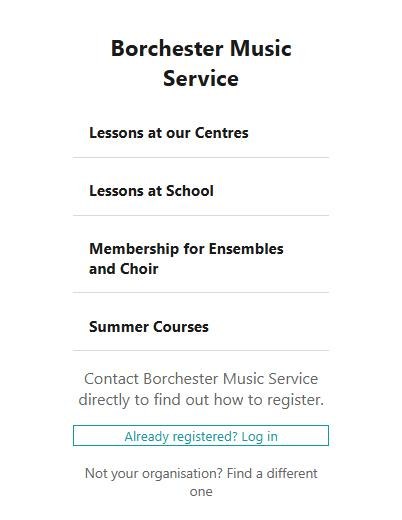
What that page says about registering is the service's own words, so it differs from one to the next. Already registered? Log in takes somebody who does have an account straight to signing in — worth knowing if you have reinstalled the app, or arrived here from a poster or a link rather than from the first screen.
One account, several services
If you are connected to more than one music service, you sign in once and choose between them in the app — see Switch Organisation below. You do not need a second account.
The bar along the top
Every screen carries the same top bar: the Xperios mark on the left, and your own name on the right. Tapping your name opens the menu that is about you rather than about your work.
| Organisation | Which service you are looking at now |
| Server | Only on a tester's build, naming which Xperios it is talking to |
| Theme | Light or Dark |
| Switch Organisation… | Where you are connected to more than one |
| About | The app's version, and links to the privacy policy and terms |
| Sign out |
Switch Organisation lists the services you are connected to. If the one you want is not there — a second service you have just been told to use — Not in this list? Find it searches for it the same way the first screen does.
My account
My account on the menu is your own record at this service, and the things only you can change.
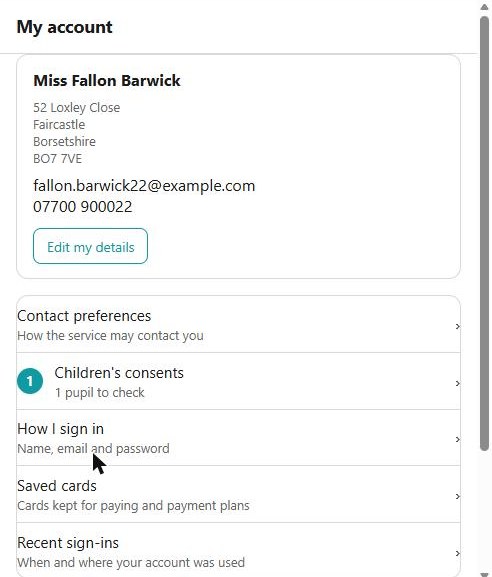
At the top are your name, address, email and phone, with Edit my details to change them. Below:
| Contact preferences | How the service may contact you — and Gift Aid where your service offers it |
| Children's consents | Photo, trip and other permissions, with a badge showing how many need checking |
| How I sign in | Your name, the email you sign in with, and your password |
| Saved cards | The cards kept for paying and for payment plans |
| Recent sign-ins | When and where your account was used |
Changing a federated sign-in
If you sign in with Microsoft, Google or Apple, your name, email address and password belong to that account, not to Xperios. How I sign in says so and sends you to change them there. Changing the email you sign in with on a Schooble account sends a code to the new address first, to prove it is yours.
Children's consents is worth the badge. A consent lapses after a time rather than lasting forever, so the number there is the service asking you to confirm that what it holds is still what you want. Today links to it too.
Privacy, and deleting your account
Two links at the bottom of My account open in your browser:
- Privacy policy — how Paritor looks after your information.
- Deleting your account — how to ask your music service to remove it. It is a request to the service, not a button in the app, and that page explains why and what happens.
Service staff
Staff at the music service see one more entry, Staff tools, and only when they are not already acting as somebody else.
| Act as someone | See the app as a parent, pupil, teacher or school contact sees it |
| Apply for someone | Make an application on their behalf, or carry one on |
| Connection requests | Schools' requests that no teacher has yet |
| Add stock | New resources into stock, ready for hire |
| Invitation claims | Who claimed an emailed invitation, and undoing a claim |
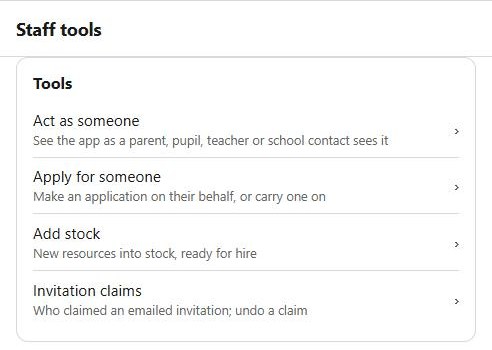
Each appears only where the service runs that part and your rights allow it, and the server checks every call again on its own account — the menu hiding something is a convenience, not the control.
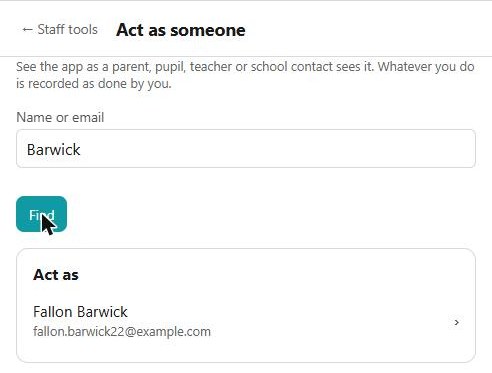
Act as someone finds a person who can sign in — type at least three letters of a name, or the start of an email — and opens the app as they see it.
Acting as someone is recorded
While you act as somebody, a banner across the top says whose app you are looking at, with Back to me to stop. Everything you do is recorded as done by you, not by them, and Staff tools disappear from the menu until you come back.
See also
- Xperios Mobile — what the app is, and what is on the menu
- Deleting your Xperios account